kgs-mdt — How to use it
A police CAD/MDT for QBCore FiveM. Dispatch board, citizen records, reports, warrants, a live unit map and terminal settings in one screen — styled as a computer you are holding.
Every screenshot in this guide is a real rendering of the shipped UI, captured from the resource itself — see Regenerating the screenshots.
Quick start
| Action | How |
|---|---|
| Open the terminal | F6, or type /mdt or /cad |
| Close it | Escape — always works, in any state |
| Check your postal | /postal |
| Change your status | Click the status button at the bottom of the left dock — each click cycles to the next status |
| Move a window | Drag its title bar |
| Minimise / close a window | – / × in the window's top right |
| Terminal size | Settings → Terminal size (saved per machine) |
The terminal only opens for officers. If you are not on the job the command does nothing — there is nothing to spoof, because the server decides, not the client.
Signing in
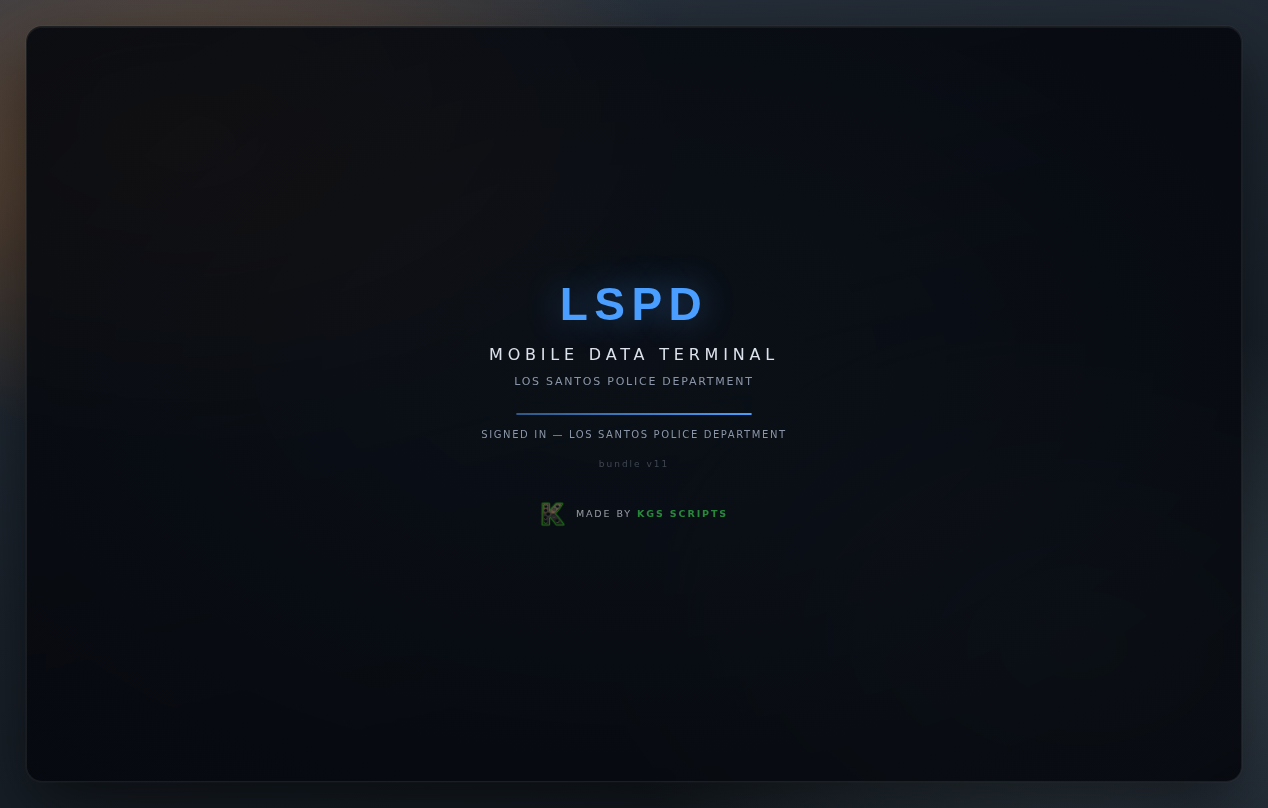
Opening the terminal shows a short boot sequence — your department crest, your name and rank, and SIGNED IN once the dispatch relay has answered. It lasts about a second. If the server refuses the session, that refusal is printed here in plain words (for example "you are not on duty") rather than a generic network error, then the terminal closes itself.
The interface
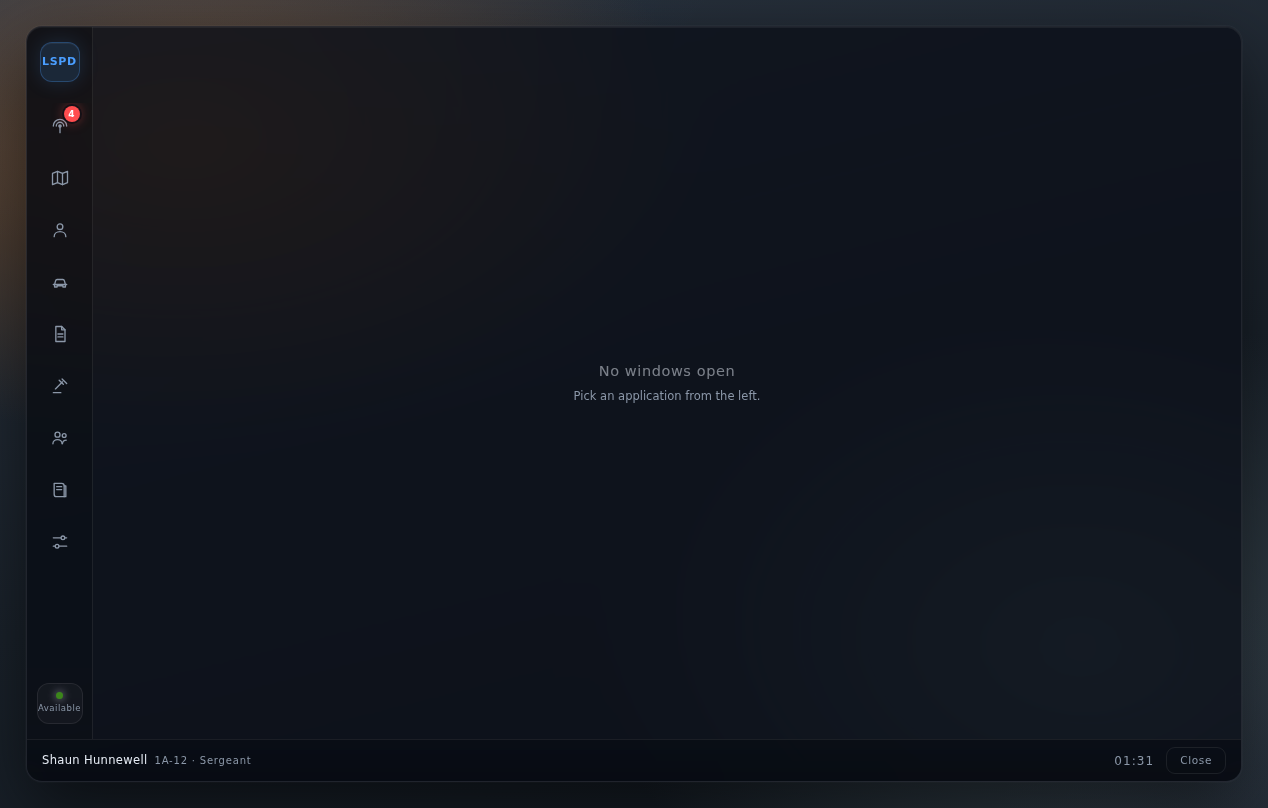
- Left dock — your department crest at the top, then one button per app, and your current status at the bottom. The red badge on Dispatch is the number of open calls.
- Windows — every app opens in its own window. They stack, drag, minimise and close independently, and they cannot be dragged off the device.
- Taskbar — who you are and your callsign on the left, one button per open window in the middle, the clock and Close on the right.
Dispatch
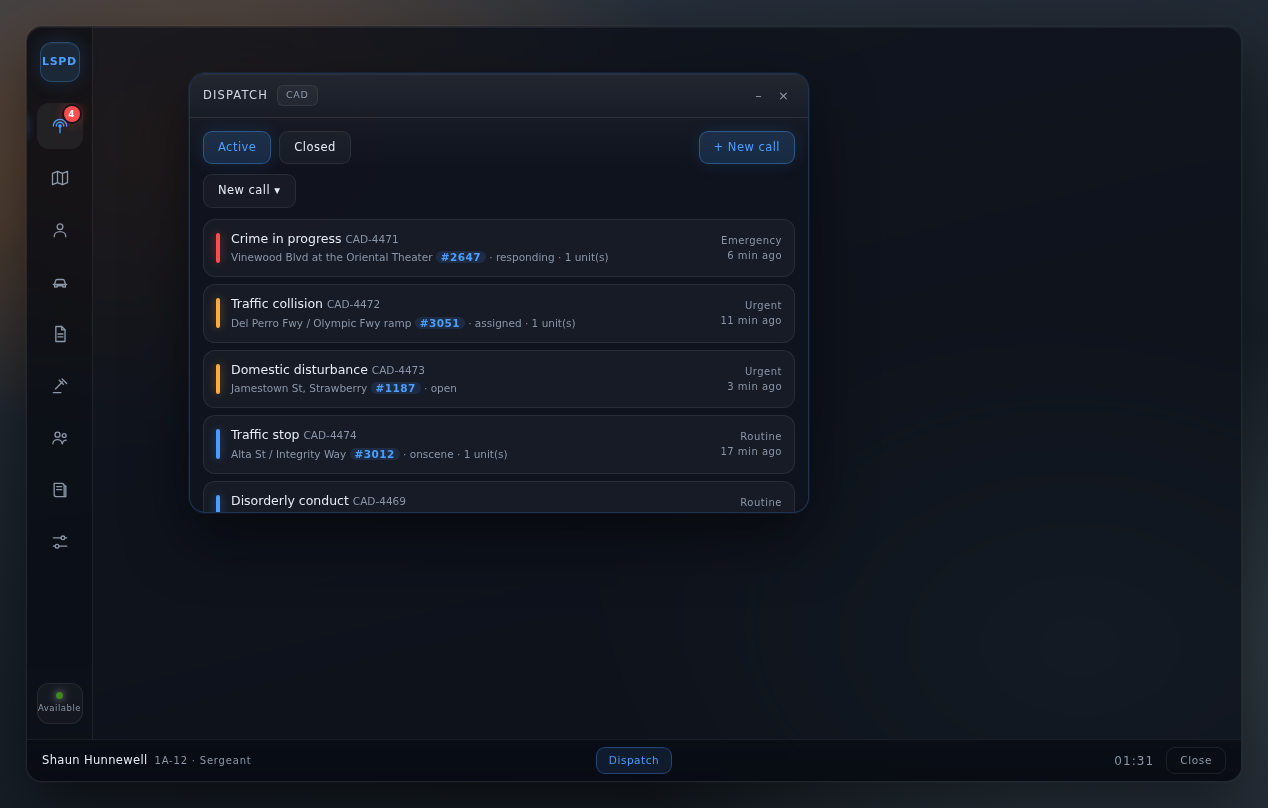
The board lists every call, newest first, colour-coded by priority — Emergency (red), Urgent (amber), Routine (blue). Each row shows what it is, its reference (CAD-###), where it is, its postal code, its state, and how many units are on it.
- Active / Closed filters the board.
- Click any call to open its detail window.
Starting a call
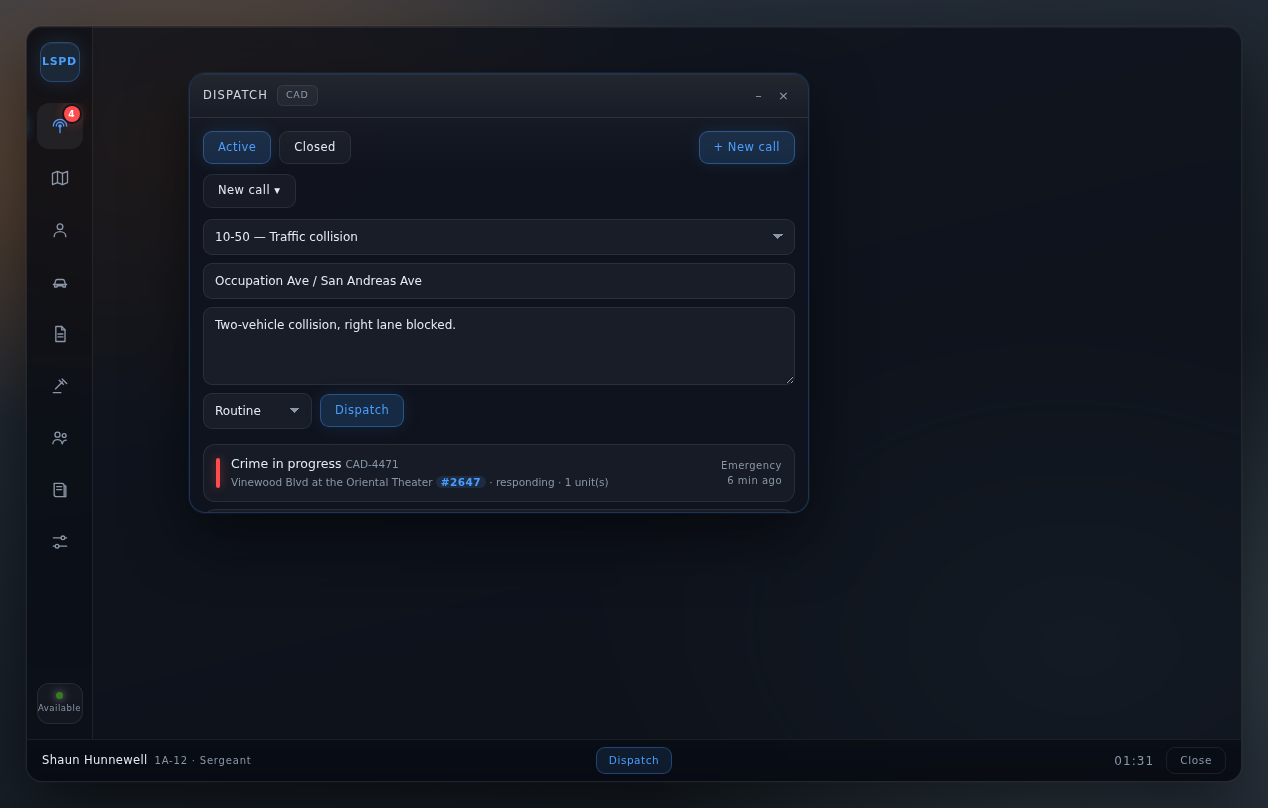
+ New call opens the create form: pick the call type from the configured list, add the location and any notes, choose a priority, then Create call. Your current position is offered so you do not have to type a street name from memory.
Working a call
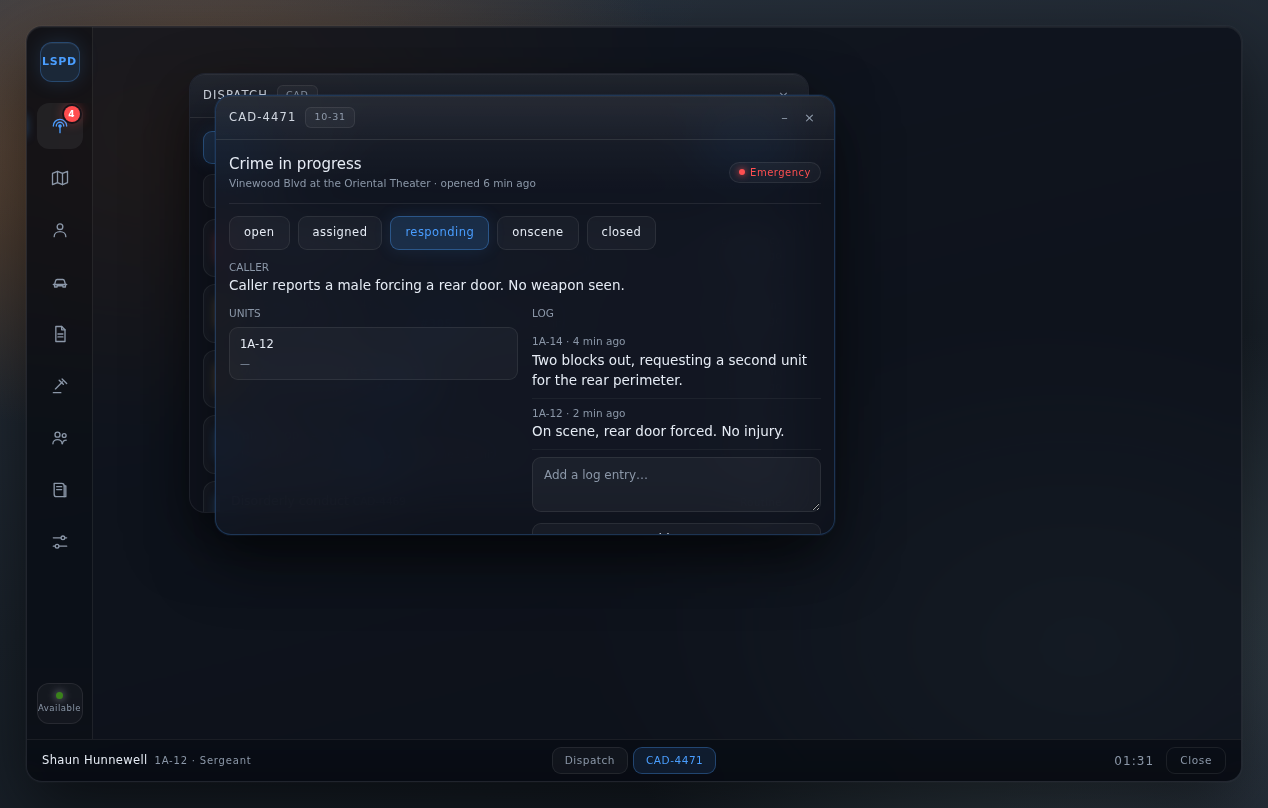
The detail window is where a call actually gets worked:
- State buttons across the top — `open → assigned → responding → onscene → closed`. Click the state the call is in; everyone sees it change immediately.
- CALLER — the original report.
- UNITS — who is assigned. Use Assign unit to add an available unit.
- LOG — a running timestamped log. Type in Add a log entry and post it, so the next shift can read what happened rather than asking.
Records
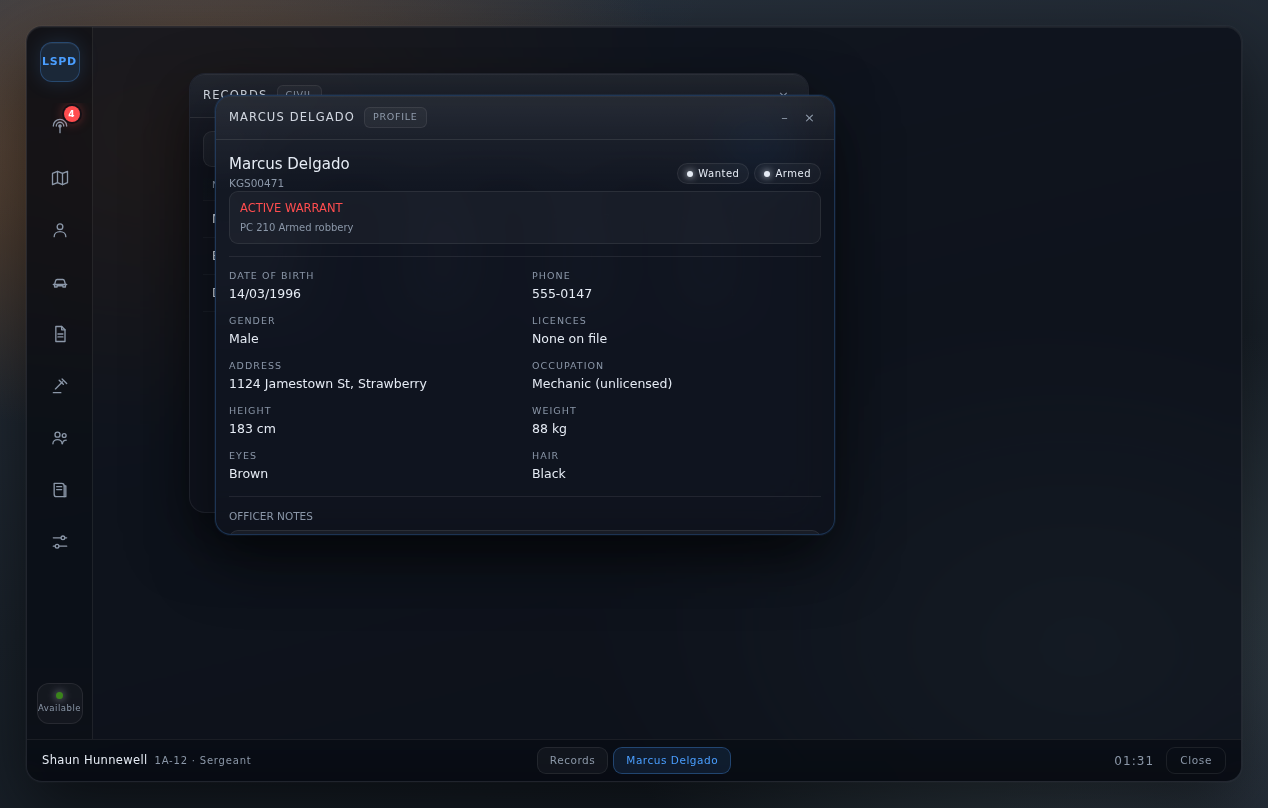
Search by name, phone number or citizen ID, then click a result to open the full profile: identity, licences, description, officer notes, flags (Wanted, Armed, BOLO…), any active warrant, vehicles on record, and priors.
From a profile you can:
- Save notes — the background a plate check will never tell you.
- Raise BOLO — publish a person BOLO with a reason.
- Issue warrant — file a warrant with charges and a reason. This needs the warrant permission on your department; the button is not shown otherwise.
Vehicles
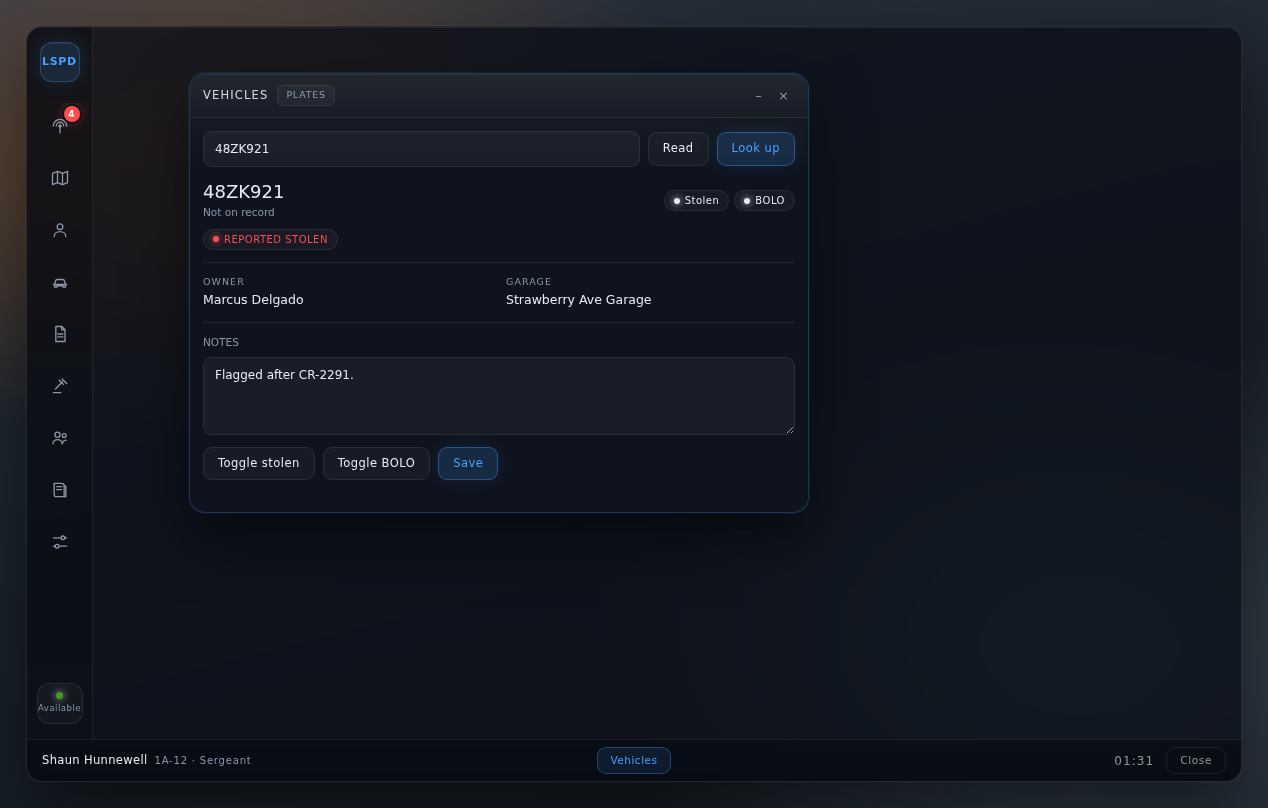
Type a plate and Look up, or press Read to read the plate of the vehicle you are standing in front of in-game — no typing, no mis-hearing a plate over radio.
The result shows the model, registered owner, garage and stolen status. Toggle stolen and Toggle BOLO flag the vehicle for everyone; Save keeps your notes. A stolen or BOLO'd plate is visible to every officer from then on, and it appears in the map's markers too.
Reports
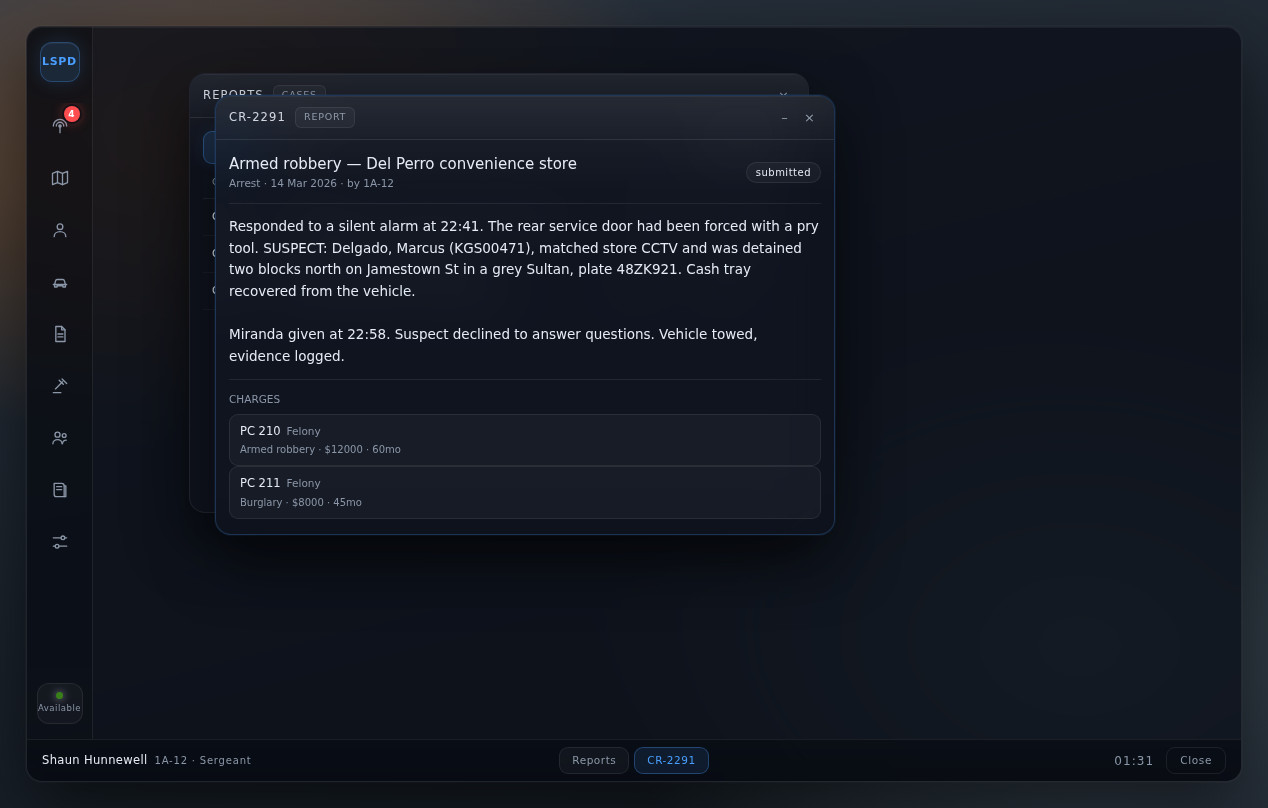
Mine / All filters the list by author. The table gives case number, title, status and date; click a case to read it in full — narrative plus a charges table with the fine and jail time for each offence.
File report creates a new one: subject, title, type (Arrest, Citation, Incident…), the narrative, then charges picked from the penal code (see below). Reports move draft → submitted → approved → closed.
Warrants and BOLOs
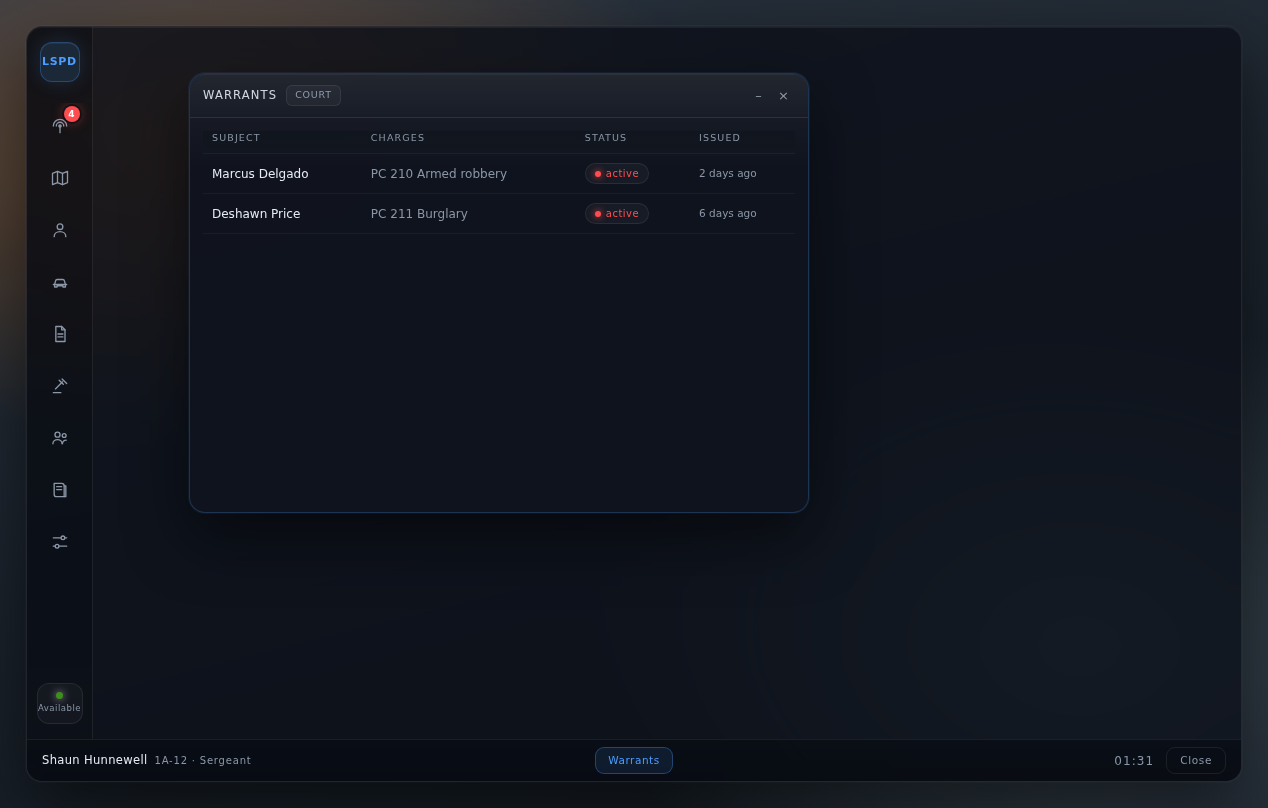
Every warrant on file with subject, charges, status and issue date. Warrants are issued from a citizen profile and can be voided here. A warrant shows on the profile it belongs to, so a routine name check surfaces it without anyone having to remember to look.
BOLOs work the same way for people and vehicles, with a reason attached.
Roster
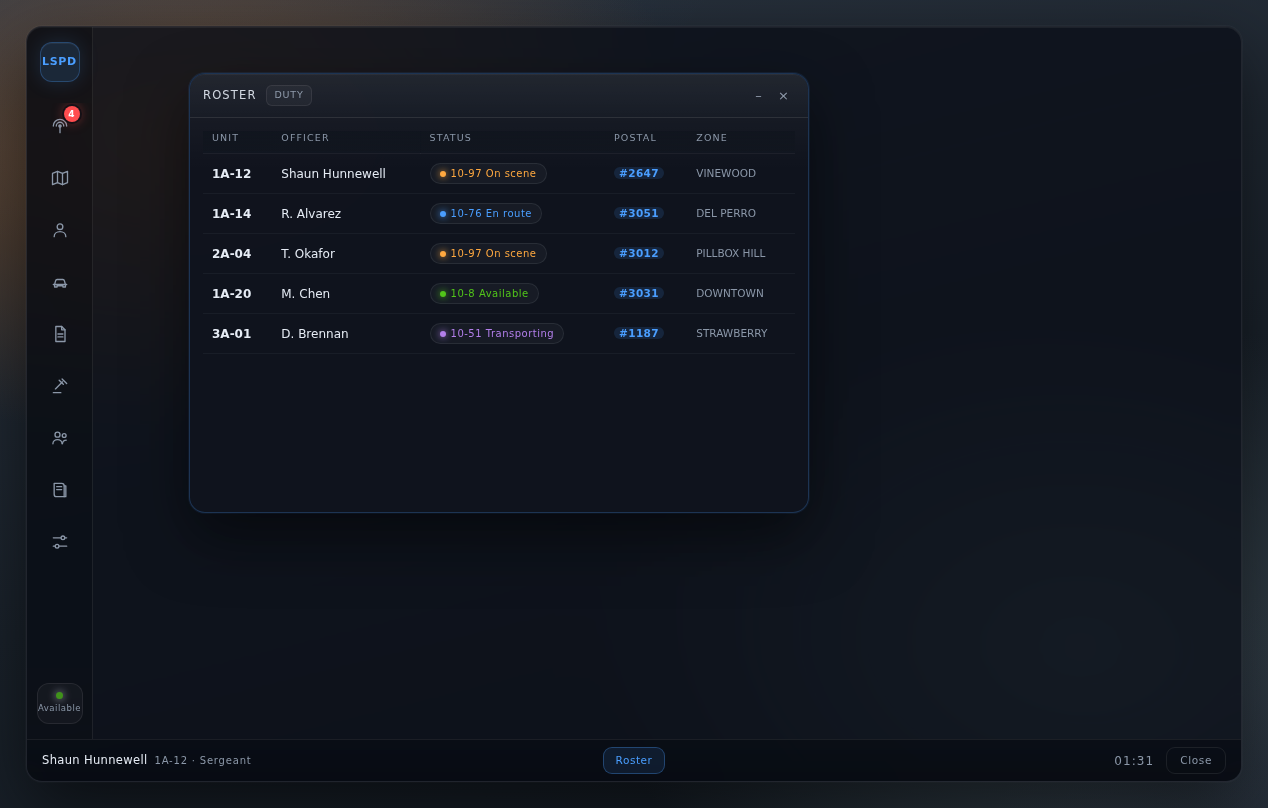
Who is on duty right now: callsign, officer, status, the postal they are sitting in, and their zone. This is the same telemetry that drives the live map, so if someone shows here they are also on the map.
Penal code
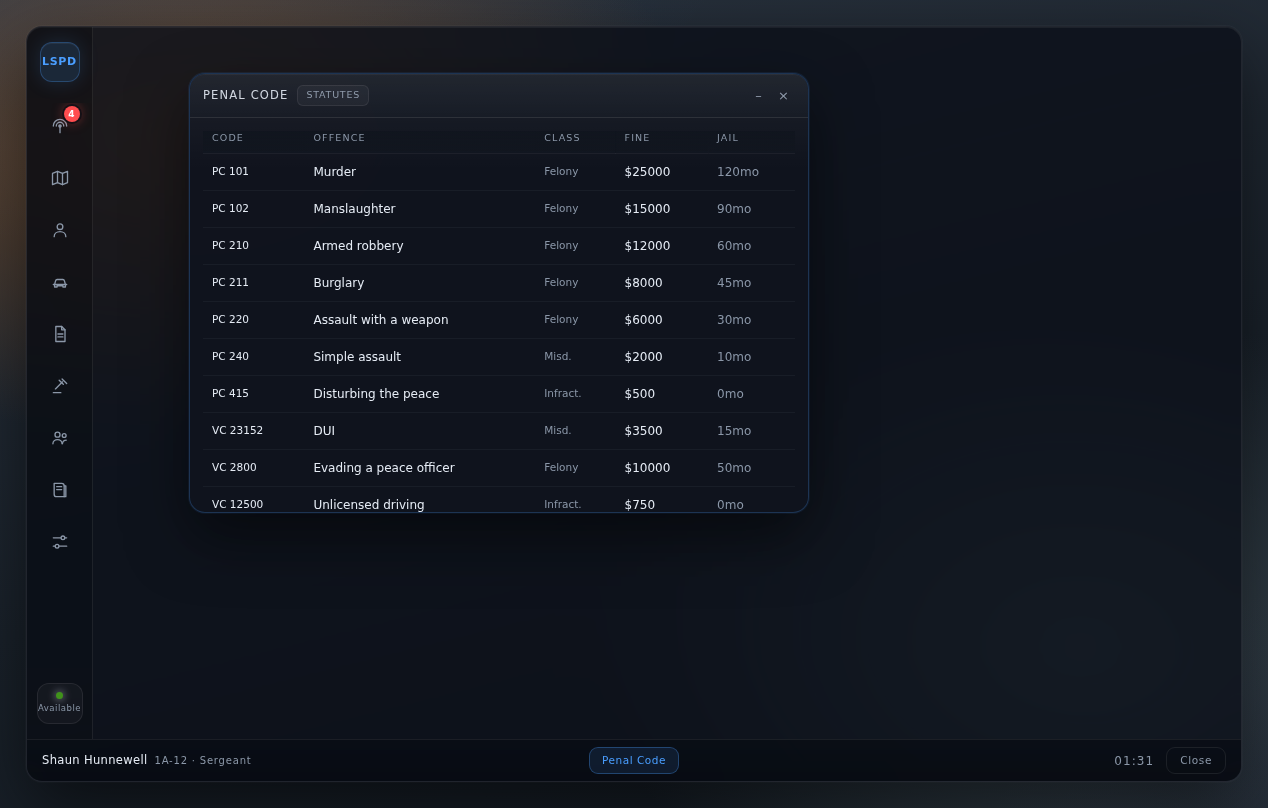
The searchable offence list — code, offence, class, fine and jail time. This is the same table the report and warrant forms pick charges from, so the wording on a report always matches the code.
Live map
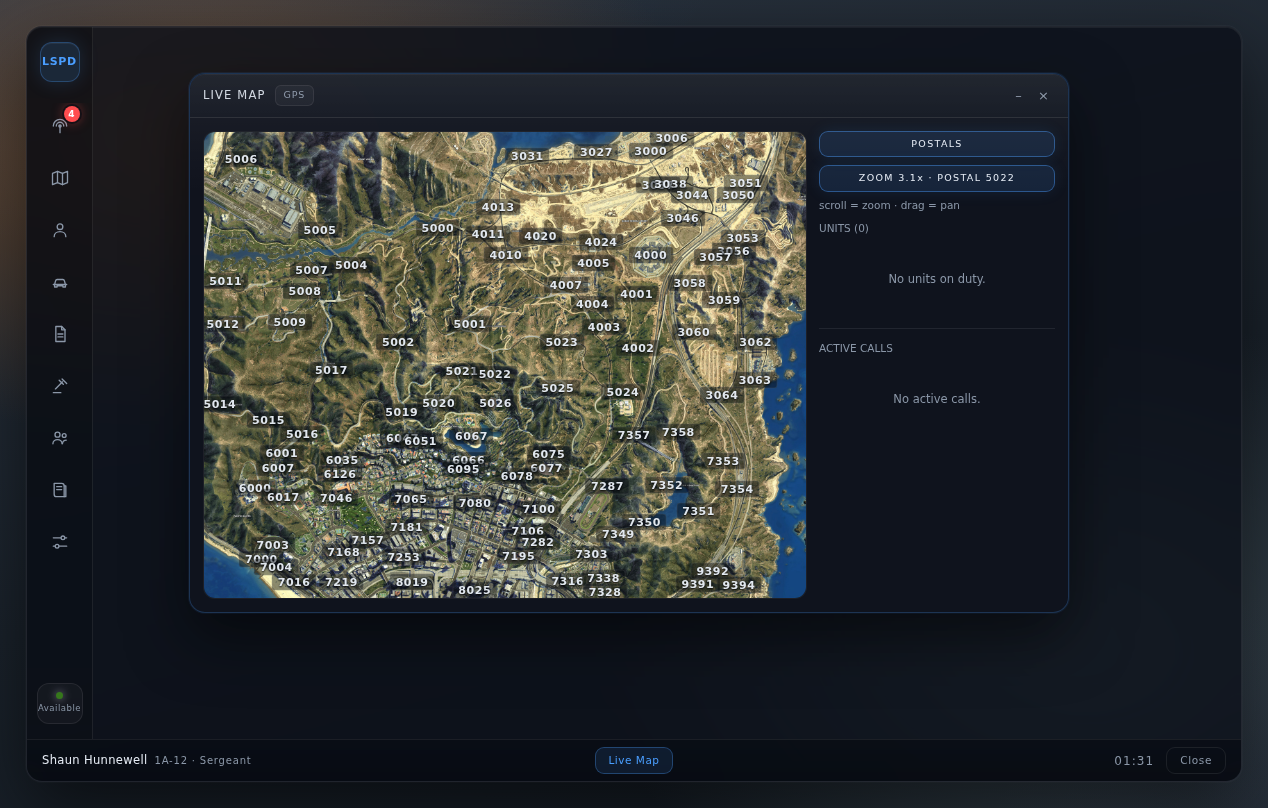
A satellite render of the map with postal codes over it, on-duty units, and open calls.
- Zoom with the mouse wheel — it zooms toward the cursor, so you can zoom straight into the street you are looking at.
- Pan by dragging.
- The ZOOM chip shows your current magnification; click it to reset.
- POSTALS toggles the postal-code labels. They thin out as you zoom out so the map stays readable.
The right-hand panels list active calls and units; clicking them jumps to that spot on the map.
Settings
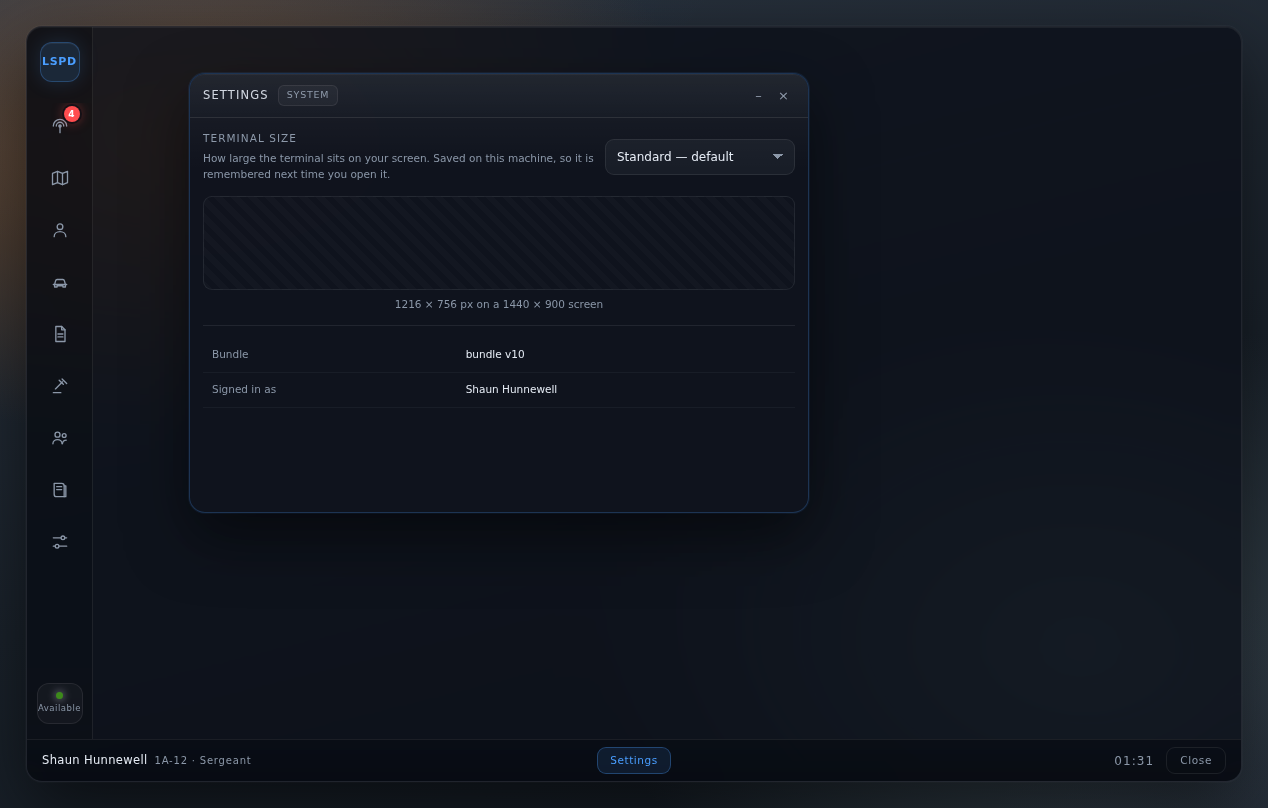
Terminal size sets how much of your screen the terminal occupies. Four presets:
| Preset | Size |
|---|---|
| Compact | 1024 × 640 |
| Standard (default) | 1216 × 760 |
| Large | 1440 × 900 |
| Full screen | your whole screen |
The diagram shows the chosen size against your screen to scale, and the readout reports the pixels it actually occupies. Your choice is saved on that machine and restored next time — it does not need setting again each shift.
Access levels
Who can do what is decided server-side from your job and grade. There is no client-side check to work around: a civilian who somehow forces the page open gets a refusal, not a session.
| Level | Sees |
|---|---|
full | everything, including warrants, BOLOs and writing |
medical | person records and medical flags, no warrants or dispatch |
readonly | look-ups only |
Per-department permissions (canDispatch, canWarrant, canBolo, canDelete) control the individual actions, and buttons you lack permission for are simply not drawn. Staff with the configured ACE permission can open the terminal for support without being a unit on the roster.
For admins
Everything lives in config.lua — no code changes needed for the usual "You've got the wrong fine" requests:
| Want to change | Edit |
|---|---|
| Call types and their priority | Config.CallTypes |
| Offences, classes, fines, jail time | Config.PenalCode |
| Officer statuses | Config.UnitStatuses |
| Person/vehicle flags and colours | Config.Flags |
| Departments, grades, permissions | Config.Departments |
| Tablet or laptop prop | Config.Device |
| Accent colours and glass tint | Config.Theme |
The database schema is installed from sql/install.sql and is deliberately kept in its own tables, so it cannot collide with QBCore core.
Troubleshooting
The terminal won't close. Press Escape — it is handled separately and works even while the terminal is still booting or has hung. The client also runs a heartbeat: if the page stops responding, the client closes it for you and gives your input back.
It looks stale after an update. FiveM caches the UI files on your machine. A reconnect is usually enough; if an update does not appear at all, fully restart your FiveM client — that is the one case a resource restart cannot fix for you.
The map is a flat grey/blue image. The high-detail sheets are generated assets and are not in the repository. Rebuild them with tools/fetch_map_lod.py; the base satellite image still renders without them.
No calls, no records, nothing loads. Check OxMySQL is connected and that sql/install.sql has been run — every screen but the penal code reads from the database.
Someone's status or position is wrong. Their client reports telemetry; an alt-tabbed or lagging player shows their last known position until they come back. It is not a stuck record.
Regenerating the screenshots
The images in this guide are generated, not hand-taken, so they cannot drift from the UI. The preview serves fetchNui out of a fixture built from your real config.lua — the call types, penal codes, statuses and flags you see in the screenshots are the ones in this repo.
python3 tools/guide_preview.py                       # build the preview + fixture
(cd /tmp/mdt-guide-preview && python3 -m http.server 8898 &)
bash tools/guide_shots.sh                            # capture + crop -> docs/img/
tools/guide_shots.sh drives a headless Chromium through every screen and crops each to the device; set CHROME=/path/to/chrome if yours is not where it looks.
Screens: boot desktop dispatch detail newcall records vehicles reports warrants roster penal map settings
Guides rot. If something here does not match what you see in the terminal, the terminal is right — tell whoever maintains it so this file gets fixed.